It's amazing, but ignoring the basics always comes back to haunt one. What are the basics in IT?
1. Get Admin rights.
2. Ensure the files are not "Read only".
When installing the Aastra Call Centre Assistant, XP automatically assigns the files as "Read only", making it impossible for the Service to alter the database. The result is that CCA will start and stop immediately.
Two great tools for troubleshooting CCA is [A] starting CCA in console mode and [B] reading the ccaerror.log file.
Smooth running I hope!
Tuesday, November 17, 2009

Tuesday, November 10, 2009
NetMeeting as an IP Phone
A new usage for me, even though the facility has been available for a long time. Using NetMeeting as IP Client with the Aastra BusinessPhone poses many advantages, such as:
>Reduced cost (NetMeeting comes standard with Windows) compared with H.323 phones.
>No drivers needed as XP contains all needed .dll's.
>Portability.
So where is NetMeeting on XP? Caught me out too.
Using the Run... option, enter conf, and follow the wizard. Once all is completed, go to Tools, and select Options. Under Advanced call options, enable the Gatekeeper, entering the IP address of the GK and you assigned extension number.
It may be that the TSAPI Bridge will have to be loaded, but I suspect not. Ensure that a good quality microphone and headphone set are used for optimum performance.
Enjoy the VoIP functionality!
>Reduced cost (NetMeeting comes standard with Windows) compared with H.323 phones.
>No drivers needed as XP contains all needed .dll's.
>Portability.
So where is NetMeeting on XP? Caught me out too.
Using the Run... option, enter conf, and follow the wizard. Once all is completed, go to Tools, and select Options. Under Advanced call options, enable the Gatekeeper, entering the IP address of the GK and you assigned extension number.
It may be that the TSAPI Bridge will have to be loaded, but I suspect not. Ensure that a good quality microphone and headphone set are used for optimum performance.
Enjoy the VoIP functionality!
Thursday, October 29, 2009
BMS and License files
Funny how some errors catch you totally off guard. For example, I found that I could not load license files (IPU and CPU) to the systems I was connecting to. At first we thought the files were corrupt and had them resent. After much evaluating and deliberations however, it became apparent that the fault was on my laptop, as my Manager's laptop transferred the licenses successfully! Wonderful, another little idiosyncratic Windows error for me to solve.
I will skip the details, I had success after the following actions:
1. Disabling the Internet Explorer Compatibility View.
2. Reinstalling BMS.
I doubt the latter made a difference unless some or other batch file for uploading Licenses got corrupted. Very likely the Compatibility View corrupts a part of (a) the uploaded file or (b) the HTML page acting as a transit page.
Either way, License uploading works!
Friday, October 2, 2009
Unified Messaging essentials
After much battling with Unified Messaging from Aastra, I have found that the software (plugins) requires the following:
Windows XP SP3
DotNet 2
Fax services
If after the installation of the Unified Messaging plug-in the Fax Monitor does not appear on transmitting of faxes, try Repairing option of DotNet 2. Failing this, all faxes can be monitored by the fax console (found in Windows under Printers and Faxes).
All of the best with the troubleshooting!
Windows XP SP3
DotNet 2
Fax services
If after the installation of the Unified Messaging plug-in the Fax Monitor does not appear on transmitting of faxes, try Repairing option of DotNet 2. Failing this, all faxes can be monitored by the fax console (found in Windows under Printers and Faxes).
Test any suspected network connectivity problems the following manner:
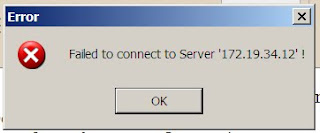
1. After setting up the IP of the UM Server, close and reopen the plugin config. If there is no Network connectivity the following error will appear:
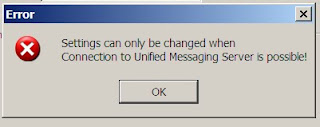
2. Still battling, but Network test above passes? After entering the User's extension and password, click apply and then select the "Settings" tab. If the extension or password does not correspond to the Server or PABX settings the error appears:
All of the best with the troubleshooting!
Friday, August 21, 2009
Programming Aastra 417 Hotel phones
This one had me stumped for a while. To program one of the buttons ensure the Programming button is enables (switch under the phone). The programming sequence is as follows:
1. Lift handset.
2. Press PROGRAM.
3. Press the desired key.
4. Enter the number to be dialled.
5. Press PROGRAM again.
6. Test, it should be working.
1. Lift handset.
2. Press PROGRAM.
3. Press the desired key.
4. Enter the number to be dialled.
5. Press PROGRAM again.
6. Test, it should be working.
Thursday, August 13, 2009
Welcome me hearty!

A huge welcome to the FIRST follower on the technical blog! It is going to be great having your support. Please place comments, questions, etc as you see a need! Hope you enjoy the pic, LONG LIVE LINUX!
Wednesday, July 22, 2009
MD110 SPU2 Software upgrade
I recently upgraded the software on a BC11 system's SPU2. In transferring the file from my PC to the PABX, I found that it could not handle the full file name (CAAxxxxx_R11A.HEX). It would copy the entire file over, so the file size would be accurate. However, on the PABX, the file would not have the full name, including the .HEX. Renaming the file does not affect how the PABX sees it, and this was the only way to maintian the file name with its .HEX. If the postfix is missing, you will not be able to load the software from the NIU2 to the desired board.
Subscribe to:
Posts (Atom)